Launch test execution
You can launch a test directly with-in excel, once the Settings is done. To launch a test, follow below instructions:
1. Select tests to be executed
Select one or more tests to be executed. You can select any row but please AVOID selecting whole columns, because Add-in will calculate selected cells and determine test data to be exported. Select whole columns will lead to analyze all possible lines (that is 1 million rows)

2. Click "Launch Test"
Then click on the button Launch Test available from the WebEngine add-in tab:

3. Choose the browser and enjoy
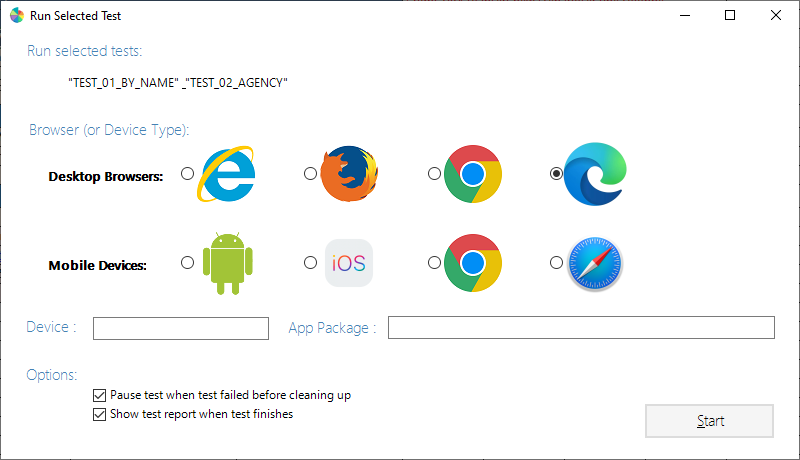
On the Run selected test dialog, you can see a list of selected test cases to be run.
According to your requirement choose a desktop browser or a mobile platform
Desktop Browsers
WebEngine Framework supports these 4 desktop browsers:
- Internet Explorer
deprecated - Mozilla Firefox
- Google Chrome
- Microsoft Edge (Chromium based)
Mobile Devices
You can also launch the test of Web or Native Mobile apps directly.
- Android Device (for Android application, provided in APK package)
- iOS Device (for iOS application, provided in IPA package)
- Google Chrome Mobile (To test Web Applications in Android Device)
- Safari (to test Web Application in iOS Device)
To launch tests on mobile devices, you'll need to specify following parameters:
Device, used for both Mobile Web or Mobile App testing, in order to select a device from a Selenium Grid compatible device cloud, or Local Appium Server according to settings.App Package, used only for Mobile App testing, indicates the path of APK or IPA package to be uploaded and installed on test device.